
There is nothing more frustrating than having new subscribers fill out your lead form, only to receive complete radio silence because your backend automations were misconfigured.
If you need a reliable way to make a Systeme io trigger email sequence after opt in execute seamlessly every single time, you’re in the right place.
I am breaking down the exact step-by-step automation rules you need to implement today so your welcome emails deliver instantly, build trust, and drive continuous hands-free sales.
Keep reading, and I’ll share how to set up this automation, a big mistake I made, and a free way to get more people to open your emails, read them, and click on them.
Systeme.io Tier & Automation Limits
Select a plan tier below to compare contact limits, funnels, and automation capacity.
Why Automating Your Systeme.io Email Sequences Saves Time and Delivers Lead Magnets Instantly
Now you have created your landing page. You might even have some emails created, but if you don’t connect them, then you will be building a list of subscribers, but they will not get your messages.
So, you need to connect them.
The way to do this is with an automation. Luckily, the free plan does come with 1 automation.
If you’re wondering why you would need more, then there are lots of uses.
For example, you can create an automation where, as soon as someone makes a purchase, they will get completely different emails. This can improve the user experience.
Lucky for you, I figured out a way to do this for free, and I wrote a whole blog post on this secret with Systeme io send different emails on purchase.
Step 1: How to Set Up a New Email Automation Rule or Workflow in Systeme.io
The first thing to do is go to the top menu and click on “automation.” Then hit the create button.
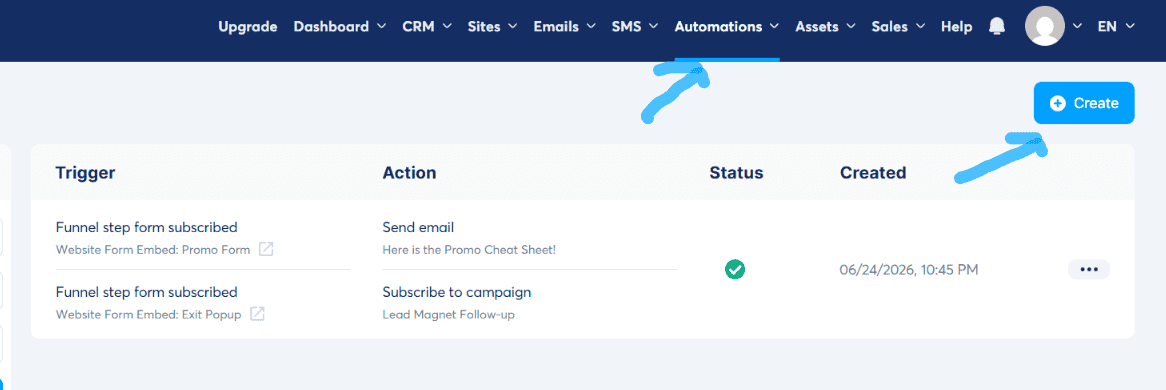
I have 1 where, when someone enters the “website form” and “exit popup,” it creates 2 actions.
- Send email. I give them the free gifts
- Subscribe to campaign. They subscribe to my email campaign.
Simple right?
The good news is when that trigger fires, you can stack as many actions as you want.
More good news is that you can create as many triggers as you want in that automation. You will notice I have 2.
- Trigger 1 – When someone hits the download button in the “embedded promo form.”
- Trigger 2 – When someone hits the download button in the “exit popup.”
If I wanted, I could create more landing pages and add them to this trigger.
Step 2: How to Add an Opt-In Form Trigger to Start Your Systeme.io Automation
Now you add a trigger.
Hit the plus button, and you will see this massive list of triggers. I picked website form subscribed.
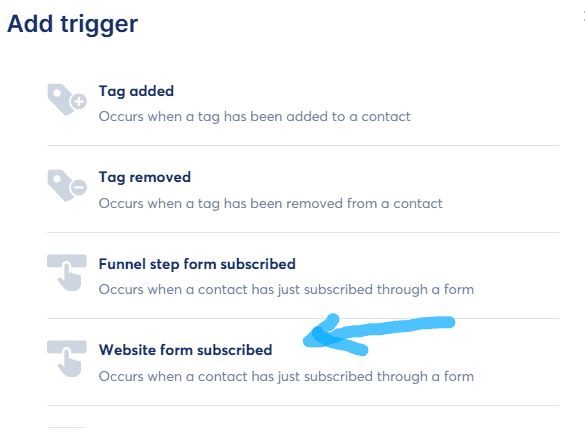
After you create your landing page, you would choose the name of it from the list. If you don’t know how to create a landing page, I wrote a post on how to embed Systeme io forms in WordPress (Step by step).
Step 3: How to Choose and Configure the “Subscribe to Campaign” Action in Systeme.io
Now you created a trigger; you need an action.
I have 2.
Yes, you absolutely need to include the action “subscribe to campaign.” Without this action, nobody on your list will get emails in your newsletter.
However, you don’t need to include the action send email. I just did it to send the free gift, because I want to ensure they get it.
You could include your free gift in the first email of the campaign too.
If you’re not sure how to create emails for your campaign, I created a free guide on how to get your emails opened, clicked on, read, and get you more sales.
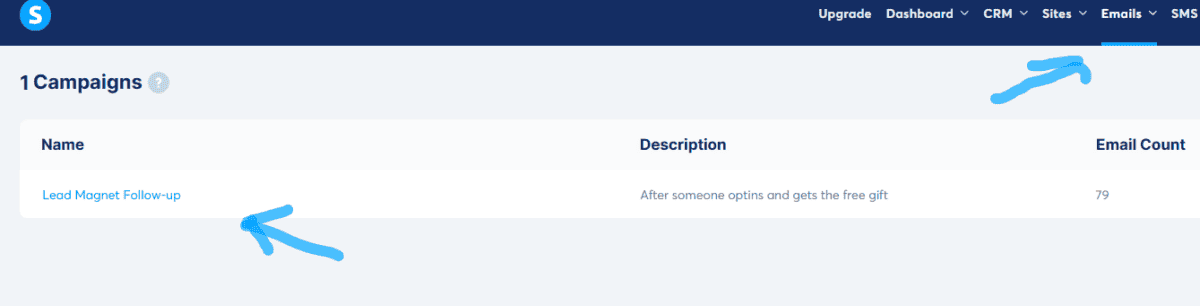
You can add emails by clicking on “emails” at the top, then “campaign,” and choose your campaign. On the free plan, you only get 1 campaign.
Step 4: How to Set Email Campaign Delays in Systeme.io to Send Your Free Gift Instantly
A good thing to remember is the delay.
If your action is ONLY to subscribe someone to the campaign and your free gift or guide is included in the campaign, then you want to set your delay to 0.
This way, as SOON as someone opts in to your list, they get the free guide you promised.
Now, if you did what I did and included the send email as an action that sends someone your free gift, then you can set the delay of your email campaign to 1 day, because they will get the free gift already.
I hope that makes sense.
Step 5: How to Test Your Systeme.io Email Trigger Automation to Ensure Immediate Delivery
Now you created the automation, and it should look something like this.
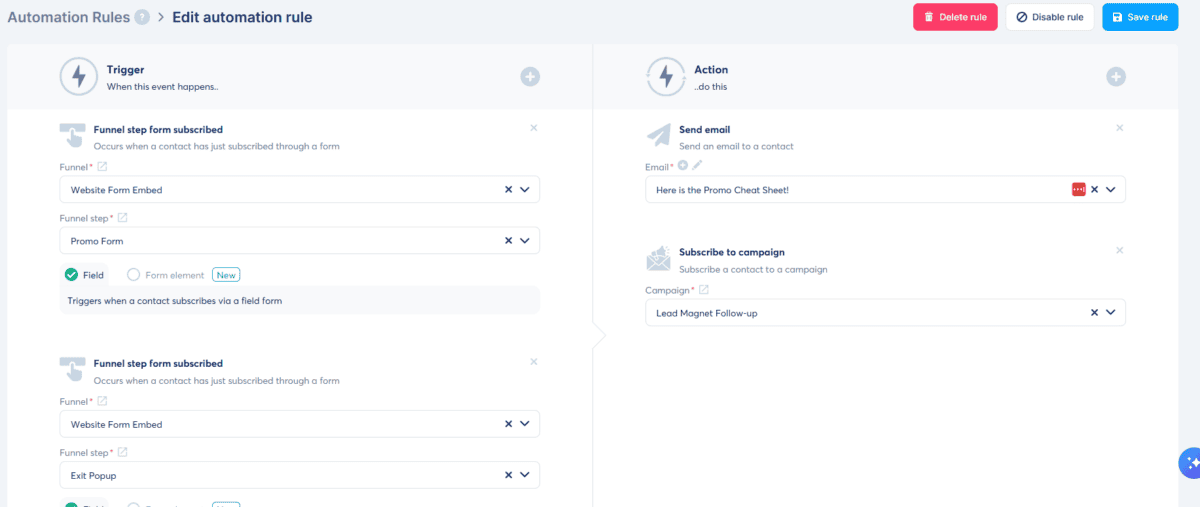
Just double-check it and “of course” test it yourself.
Yes, subscribe to your opt-in pages and MAKE SURE you get the free gifts and you.
I remember testing mine out, and I made some mistake where I didn’t send the emails. I think my delay on email 1 was set to some insane number.
So the only way to ensure your email campaign works is to test it yourself.
Closing: Systeme io trigger email sequence after opt In Guide
I hope this post was helpful.
If you want to know more about Systeme io I wrote a whole post on my story about how I switched from another similar platform and the pros and cons of both.
You can view the best alternative to Sender for free funnel building.
Bye for now.