

You just landed a sale on your free account, but now you hit a massive wall: how do you deliver unique follow-ups to different products without paying to upgrade?
Figuring out how to make Systeme.io send different emails after purchase can feel like solving a puzzle with missing pieces.
Most creators assume you need paid account features like multiple complex workflows to segment buyers.
But you don’t need to spend a dime.
There is a free way to segment your list, but it does require a little bit of effort.
Keep reading, and I’ll share this workaround, why it’s good to segment a list, and 2 ways to do this on autopilot.
Systeme.io Tier & Automation Limits
Select a plan tier below to compare contact limits, funnels, and automation capacity.
Why Email List Segmentation Increases Open Rates and Sales
Some people have to look at something a few times before they pull the trigger.
The great thing about an email list is you can provide someone more ways to look at an offer and thus increase your closing rate and earn more money.
Another LARGE benefit of an email list is you can introduce multiple offers or products in 1 niche and thus increase your income.
There is this theory that some people have to look at something 7 times before making a purchase (the power of 7).
Others feel 3 meaningful exposures (where the person actually pays attention) is often the sweet spot for driving action, rather than 7.
The fact is, the more times a brain sees a brand name, logo, or message, the less “risky” or “unknown” that brand feels.
There is a way to do this where it’s not annoying, too.
If someone pulls the trigger on day 1, how do you move them to different emails?
This is where segmentation comes in, and it can improve the user experience!
How to Segment an Email list for free in Systeme.io free plan
The workaround is a manual process.
When you notice a sale possibly with email, you would then follow these steps.
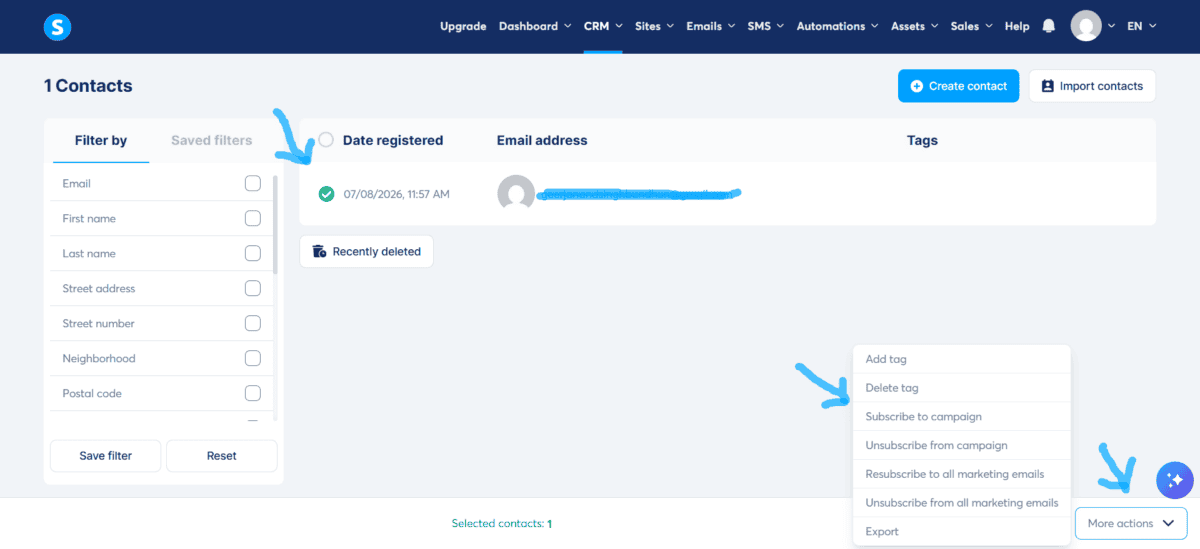
- Go to CRM > Contacts and check the box next to your upsell buyer.
- Click More actions at the bottom right and select Subscribe to campaign.
- Select your 1 allowed campaign from the dropdown.
- Under “Where should the contact start?”, choose the specific email step meant for the next step.
- Click Subscribe.
Now the subscriber will skip all the emails and move ahead in the process.
How to Segment an Email list automatically? 2 Ways
The million-dollar question is: how do we do this automatically? There are 2 ways I know of.
- Paying Systeme.io $17 a month for 10 automation rules (you can do it 10 times).
- Using an AI automation platform like Make that costs $12 a month for 10,000 credits a month.
The problem with Make and I tried to set this process up, is it’s insanely complex.
I had AI walk me through it, and after 2 hours it wasn’t even set up.
The other problem is if you set Make to “watch” for sales on a timer (polling every 15 minutes), it can burn through credits just checking if anyone bought anything, even if zero sales came in!
Conclusion: Systeme.io send different emails after purchase
Email is a very powerful tool. It’s something you can own online and protects you from algorithm changes on platforms.
I’ve spent 15 years crafting messages and spending thousands on copywriting training.
I’m giving away a free cheat sheet on earning money with email. This can help your emails get opened, clicked, and get you more money.
Most importantly, this cheat sheet can make crafting emails more enjoyable for you and the reader!
Bye for now.